Guide
How to annotate lecture PDFs on iPad and turn them into study material
Lecture slides usually arrive as PDFs. Instead of copying them into a separate notebook, write straight on their pages and your notes stay next to what they explain. This guide shows how to do that in an organised way on iPad, and how to turn those notes into review material before the exam.
Why write on the PDF itself?
Notes kept in a separate notebook point back to a diagram, formula or table with "see slide 14", and during exam week you end up opening two sources side by side. A note in the margin of the slide shows what it is about on its own. The line you underlined, the question you wrote beside it and the definition you highlighted all stay on the same page.
The trick is to treat the PDF not as something to read but as a notebook with the paper already printed: every margin, every gap between lines is space to write in.
Making a notebook from a PDF in StudyNotes
- In the library, tap the New notebook card.
- Pick From a PDF at the top.
- Name the notebook, change its cover if you like, then tap Choose PDF and pick the file in the Files app (iCloud Drive included).
Every page of the PDF becomes the paper of a notebook page, and you write on top of it. Files up to 100 MB and 500 pages open. Notebooks from a PDF are part of Pro; on the free plan you start with a blank notebook (one notebook, ten pages).
Settings that make writing easier
Pen mode or finger mode?
With Apple Pencil, use pen mode: the Pencil writes and your finger turns pages. Without a Pencil, finger mode lets one finger write while two fingers turn pages.
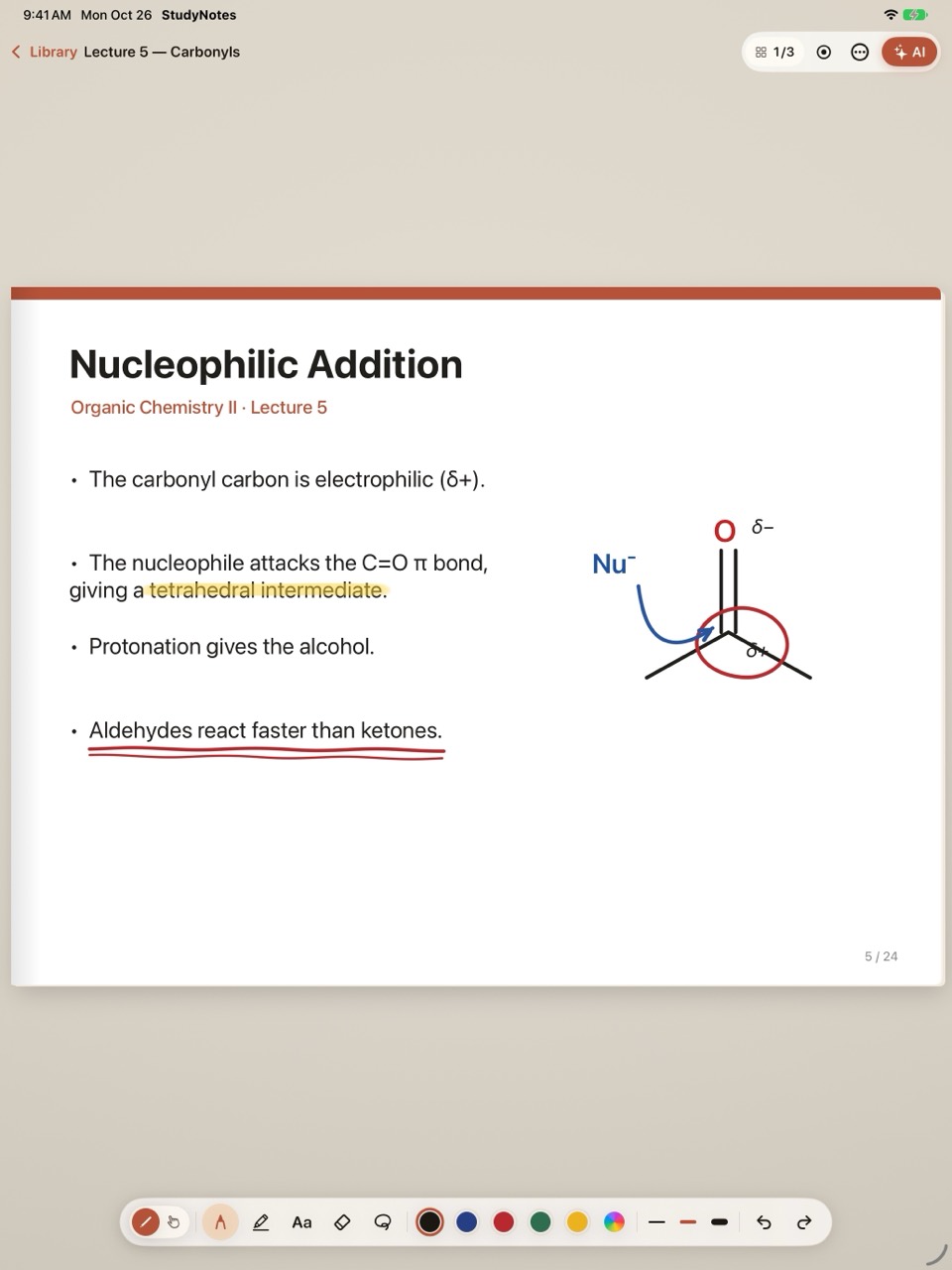
Mark up consistently with three tools
If everything is drawn in the same colour, nothing stands out in exam week. A simple rule helps:
- Highlighter: definitions and formulas only.
- Red pen: the parts your lecturer said will be on the exam.
- Text box: explanations given in class that are not on the slide. Type anywhere on the page; it sits on the same page as your handwriting.
Marked the wrong spot? Select it with the lasso and move it, or wipe it with the eraser. Every page keeps its own undo history.
Two pages side by side
Hold the iPad in landscape and the notebook stays open with two pages side by side; pages turn with a paper curl. Handy for keeping a slide and the worked example that follows it in view together.
Before the exam: turning notes into review material
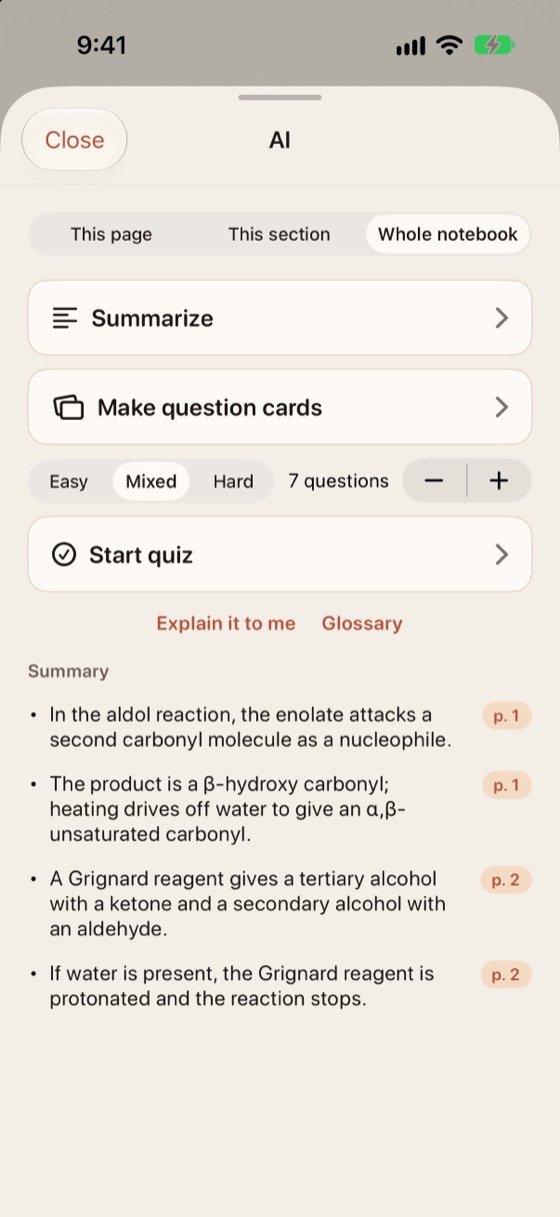
The pages you wrote during the term are the study material for exam week. In StudyNotes, AI works only with the page, section or notebook you pick:
- Summarize: every point carries its page number; tap it and the notebook turns to that page. If the model cannot tie a point to your notes, it does not show it.
- Question cards: studied with spaced repetition; cards you remember move further out, hard ones come back sooner.
- Quiz: easy, mixed or hard; questions you get wrong collect under Mistakes.
One caveat: AI reads the PDF's text layer and the recognised text of your handwriting. Scanned PDFs whose text cannot be selected give it little to work with; lecture PDFs with selectable text work best. AI features are part of Pro; the free plan includes 3 trial runs after signing in. AI follows the source's language: an English slide gives English questions.
Sharing and keeping
Export a notebook as a PDF whenever you like; text boxes become selectable text. That is enough to share notes with a classmate or archive them at the end of term.
In short
Open the PDF as a notebook, mark it up consistently with three tools, put explanations in text boxes, and in exam week make summaries, cards and quizzes from the same pages.
Download on the App Store